Crop a rectangular image to a square: what gets removed?
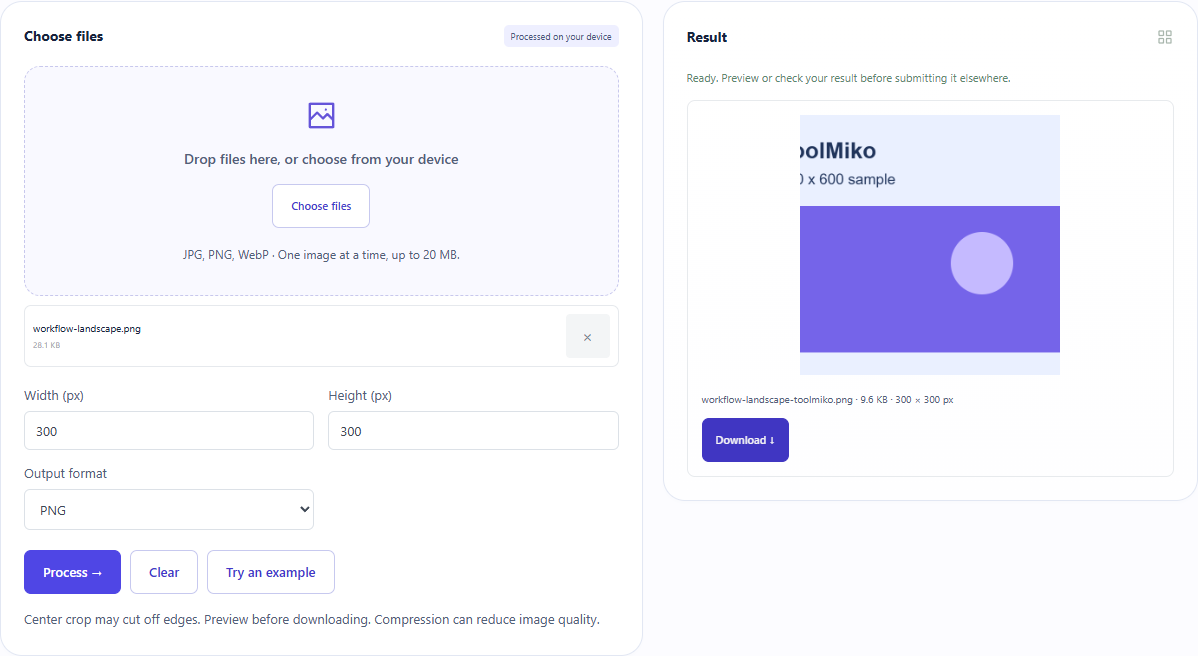
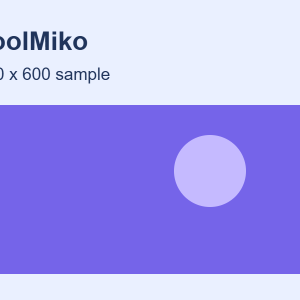
Our 800×600 sample produced a 300×300 PNG. The tool takes the central 600×600 region before scaling it down, removing 100 original pixels from each side. Proportional resizing keeps the whole image instead.
Open tool: Crop image →What should you prepare?
- Keep a clear original and a backup, or download the generated sample below.
- Check whether you need an exact square or only a maximum 300-pixel edge.
- Make sure the subject is centered. This tool has no draggable crop box or position offset.
How do you use ToolMiko?
- Open Crop image and upload the sample PNG.
- Set both width and height to 300; choose PNG output.
- Run the tool, download the file and check that both dimensions are 300 pixels.
- Compare the edges and text with the original. Use Resize image if all content must remain.
What did the sample produce?
The same 800×600 fixture produced 300×225 in our resizing guide and 300×300 here. These operations meet different requirements; file size alone cannot tell you whether the framing is correct.
| Check | Observed result |
|---|---|
| Input | 800 × 600 px |
| Output pixels | 300 × 300 px |
| File bytes | 9,869 |
These non-personal samples were generated for ToolMiko and tested in Windows Chrome on 2026-11-13. Repeat with the source files; results can differ with your files and device.
What if the result is wrong?
The subject near an edge disappears
Cropping is centered. Prepare a centered original or resize proportionally; this tool cannot move the selection manually.
The square looks blurry
A 300×300 output has limited detail. Inspect it at normal display size and restart from the original if you need more pixels.
Limits and file handling
One JPG, PNG or WebP up to 20 MB, processed in your browser. There is no face detection or recovery of cropped content. Resizing preserves the image proportions; cropping removes edges.