Why does transparent PNG turn white when converted to JPG?
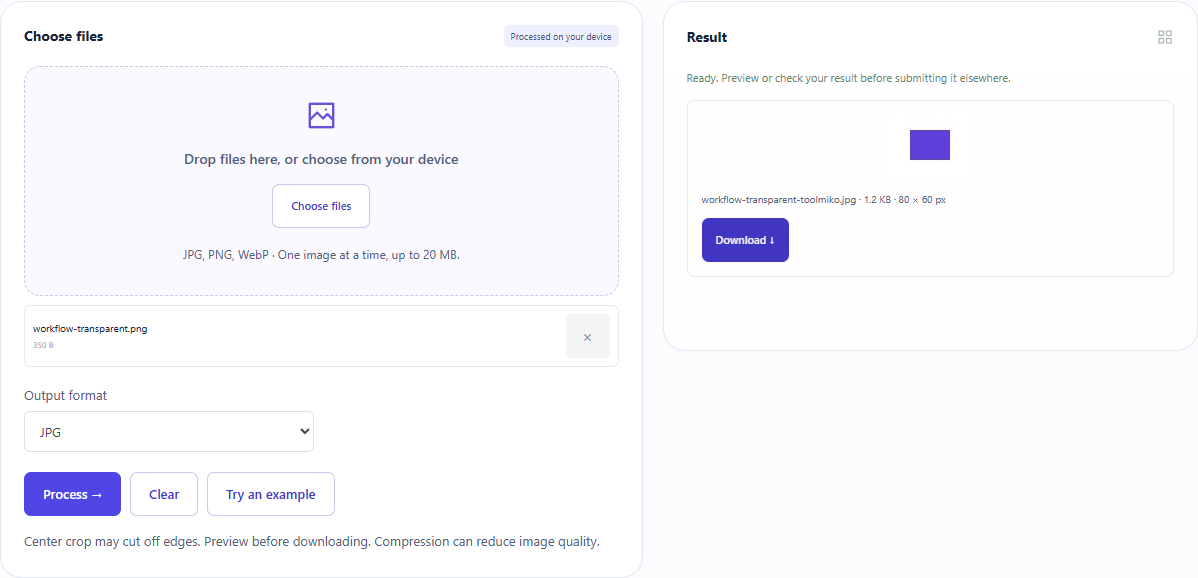
Our transparent 80×60 PNG became an 80×60 JPG with white corners. ToolMiko fills the canvas white before JPEG encoding. Choose PNG or WebP when transparent areas need to remain transparent.
Open tool: Convert image →What should you prepare?
- Use the sample below, whose corners are transparent, or keep your own original PNG.
- Check which formats the receiving page accepts; changing an extension is insufficient.
- Do not choose JPG if transparency is required.
How do you use ToolMiko?
- Open Image format converter and upload the transparent sample.
- Select JPG as the output format and run the tool.
- Download the file and check its JPEG format and 80×60 dimensions.
- Compare the corners with the PNG; return to the original and choose PNG or WebP if needed.
What did the sample produce?
The downloaded bytes have a JPEG file marker and decode to 80×60 pixels. The top-left pixel is white and fully opaque. The byte count below comes from that file, not an estimate.
| Check | Observed result |
|---|---|
| Input | 80 × 60 px |
| Output pixels | 80 × 60 px |
| File bytes | 1,267 |

These non-personal samples were generated for ToolMiko and tested in Windows Chrome on 2026-11-13. Repeat with the source files; results can differ with your files and device.
What if the result is wrong?
I renamed the file .jpg but it is rejected
Renaming does not change the encoding. Export through the converter, then check any additional size and dimension requirements.
Why is the converted file larger?
JPG is not always smaller for tiny images, text or transparency. Conversion has no target byte limit. Use image compression separately and inspect readability.
Limits and file handling
One JPG, PNG or WebP up to 20 MB, processed in the browser. JPEG is lossy and cannot retain transparency. This converter uses a white JPG background with no custom background selector. Results vary by image and browser.