PDF to text (TXT) — Steps and checked example
Checked: · ToolMiko
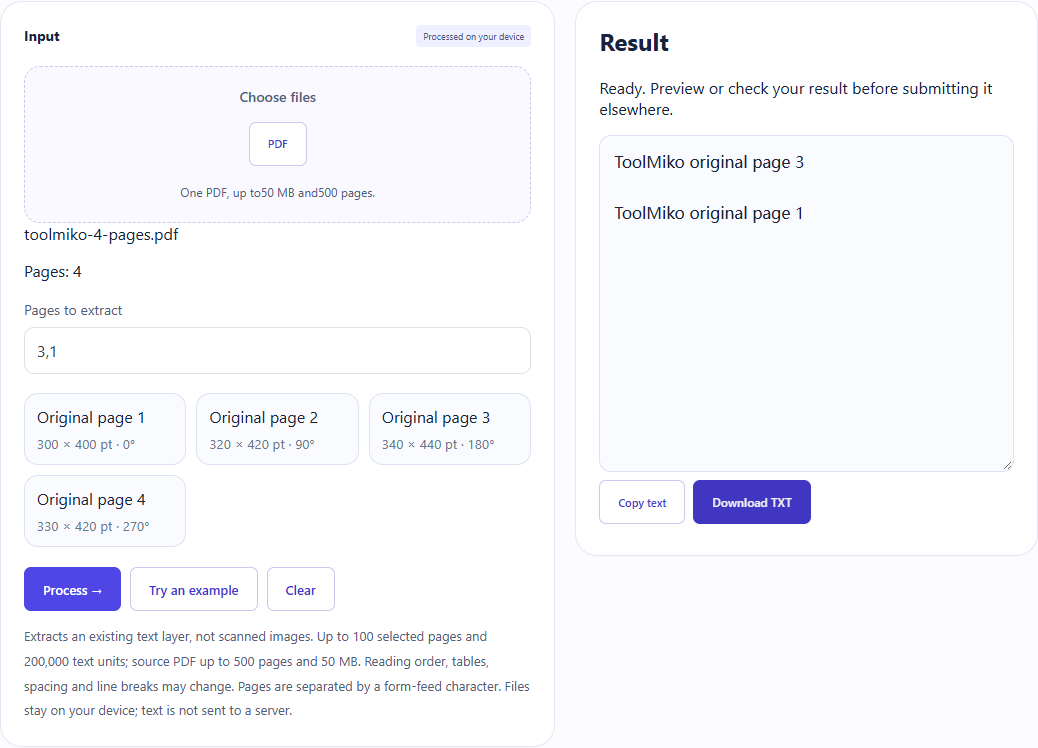
Load the four-page sample and extract pages 3,1. The TXT contains original page 3 before original page 1.
PDF to text (TXT) →Steps and checked example
- Choose an unencrypted PDF with a text layer and wait for its page count. Scanned images cannot be recognized here.
- Enter pages or ranges (for example 3,1); text follows your selected order.
- Run, check extracted text and reading order, then copy it or download UTF-8 TXT.
Generated fixture and downloaded result
The sample contains no user files. Screenshots and downloadable results come from actual use of this tool.
Limits and checks
Extracts an existing text layer, not scanned images. Up to 100 selected pages and 200,000 text units; source PDF up to 500 pages and 50 MB. Reading order, tables, spacing and line breaks may change. Pages are separated by a form-feed character. Files stay on your device; text is not sent to a server.
Scans: convert to an image, then run OCR manually
This tool has no built-in PDF OCR. If there is no text layer, use these steps:
- Select one page in PDF to images and export it as PNG. Open PDF to images
- Choose the downloaded PNG in Image to text OCR, select the language of the printed text, then run recognition. Open Image to text OCR
Check the recognized text, especially numbers and line breaks, before copying or downloading TXT. Accuracy and the original layout are not guaranteed.