Preview Markdown and export a restrained HTML document
Our Markdown sample rendered a ToolMiko heading and bold Hello. The script element was absent from the preview; a real HTML file was exported.
Open tool: Markdown preview →What should you prepare?
- Keep the original text or file. The sample TXT describes test settings; it does not import them automatically.
- Check options before processing your content. Random outputs and browser capabilities may differ.
How do you use ToolMiko?
- Paste a heading, a blank line and **Hello**.
- Run and compare the rendered heading and bold text.
- Download HTML and inspect it separately before embedding it elsewhere.
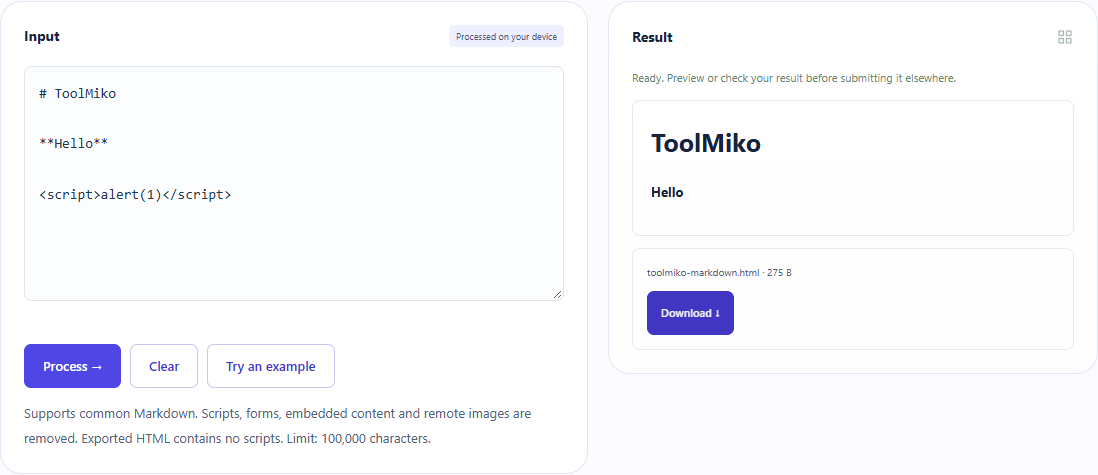
What did the sample produce?
The table and screenshot come from actual operations. TXT files are editorial check records; any additional file is a real tool export.
| Check | Observed result |
|---|---|
| Input | # ToolMiko **Hello** <script>alert(1)</script> |
| Observed result | heading=ToolMiko; strong=Hello; executable_script_count=0 |
| File bytes | 57 |
Download this test result: remaining-markdown.html.txt →
These non-personal samples were generated for ToolMiko and tested in Windows Chrome on 2026-11-13. Repeat with the source files; results can differ with your files and device.
What if the result is wrong?
Why was input HTML removed?
The preview sanitizes markup and restricts content. It is not a raw HTML or JavaScript execution environment.
Limits and file handling
The exported document uses a restrictive content policy. This test is not a universal security audit, and a preview is not publication. Remote images and unsafe links can be removed or blocked.