Add a text watermark and inspect the downloaded image
A centered ToolMiko text watermark on the400×200 example exported a400×200 PNG. It is a visible label, not tamper protection.
Open tool: Image watermark →What should you prepare?
- Keep the original text or file. The sample TXT describes test settings; it does not import them automatically.
- Check options before processing your content. Random outputs and browser capabilities may differ.
How do you use ToolMiko?
- Load the example and enter ToolMiko as the watermark.
- Choose center and100% opacity for an easily inspected test.
- Generate and download; inspect the mark on light and dark areas before using your own text.
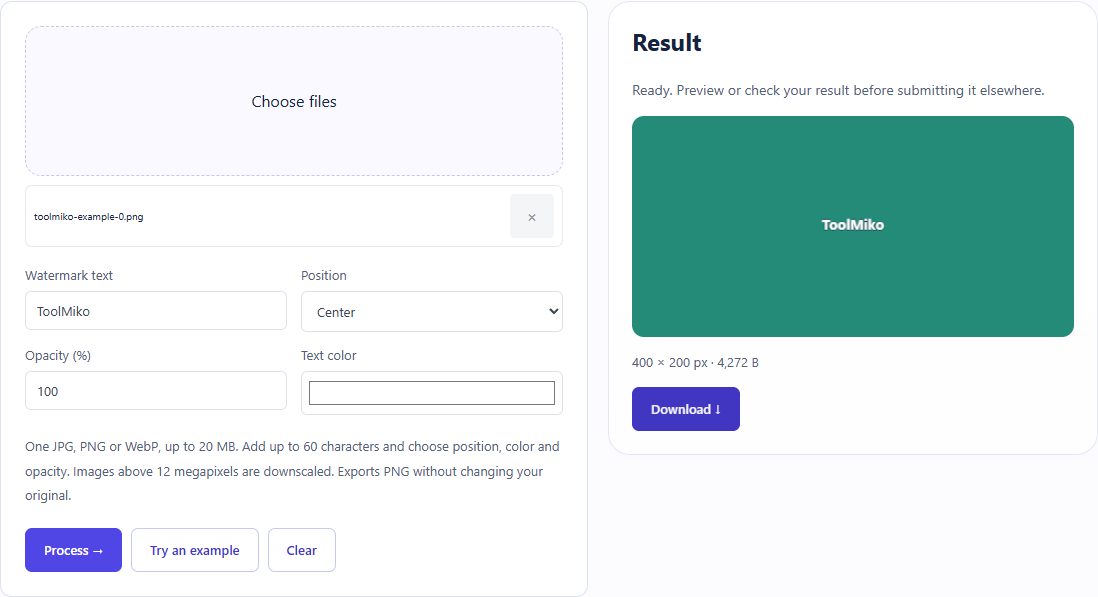
What did the sample produce?
The table and screenshot come from actual operations. TXT files are editorial check records; any additional file is a real tool export.
| Check | Observed result |
|---|---|
| Input | Example: green400x200; text=ToolMiko; center; opacity100 |
| Observed result | PNG=400x200; centered text watermark |
| File bytes | 36 |
Download this test result: remaining-image-watermark.png →

These non-personal samples were generated for ToolMiko and tested in Windows Chrome on 2026-11-13. Repeat with the source files; results can differ with your files and device.
What if the result is wrong?
The watermark is difficult to read
Check color, opacity and placement. The underlying image still determines whether small text is visible.
Limits and file handling
Large inputs may be downscaled. The text must fit the tool’s limits and cannot contain line breaks. A watermark cannot guarantee that a file will not be copied, edited or misused.