Compare two text versions and read additions and removals
Comparing alpha/beta against alpha/gamma marked beta as removed, gamma as added and alpha as shared. The comparison does not rewrite either input.
Open tool: Text compare →What should you prepare?
- Keep the original text or file. The sample TXT describes test settings; it does not import them automatically.
- Check options before processing your content. Random outputs and browser capabilities may differ.
How do you use ToolMiko?
- Paste alpha then beta on separate lines in the first field.
- Paste alpha then gamma in the second and run.
- Read both the addition/removal labels and text, then copy or edit your source separately.
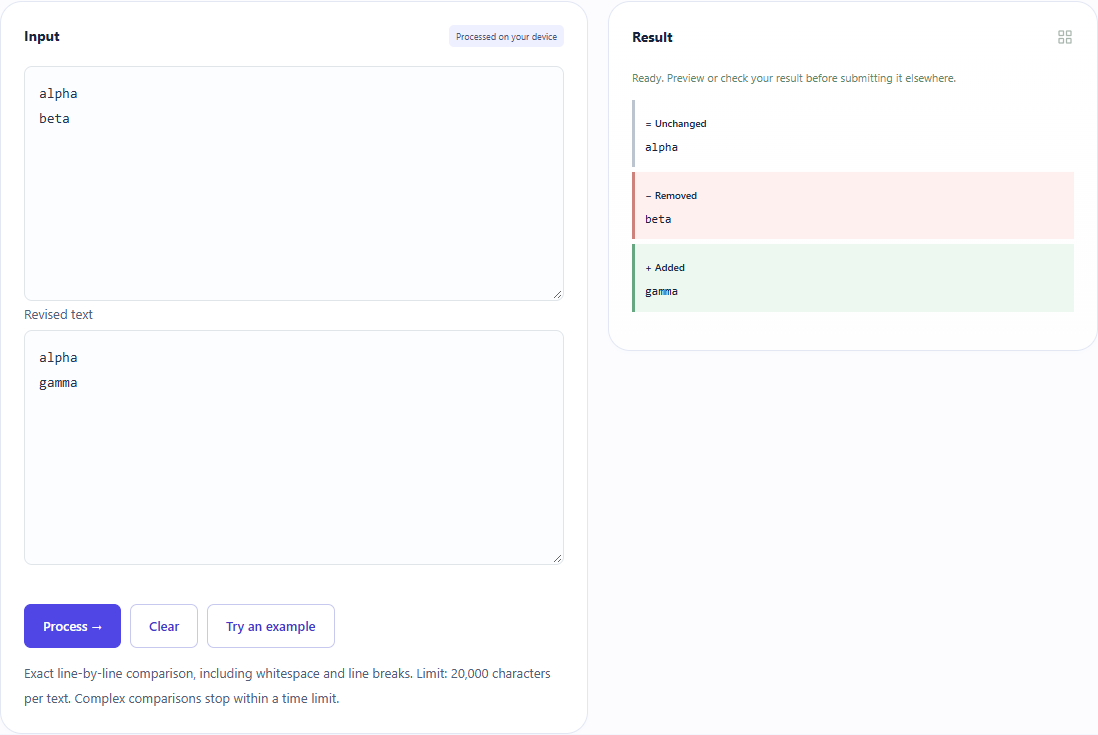
What did the sample produce?
The table and screenshot come from actual operations. TXT files are editorial check records; any additional file is a real tool export.
| Check | Observed result |
|---|---|
| Input | before: alpha beta after: alpha gamma |
| Observed result | removed=beta; added=gamma; shared=alpha |
| File bytes | 39 |
These non-personal samples were generated for ToolMiko and tested in Windows Chrome on 2026-11-13. Repeat with the source files; results can differ with your files and device.
What if the result is wrong?
Why does whitespace create a difference?
Spaces and line breaks are text too. Normalize only if your task permits it, and keep the original versions.
Limits and file handling
This is text comparison, not semantic review or a Word/PDF track-changes editor. Each input has a size limit. Color alone should not determine meaning; use the labels.