Edit PDF document information — Steps and checked example
Checked: · ToolMiko
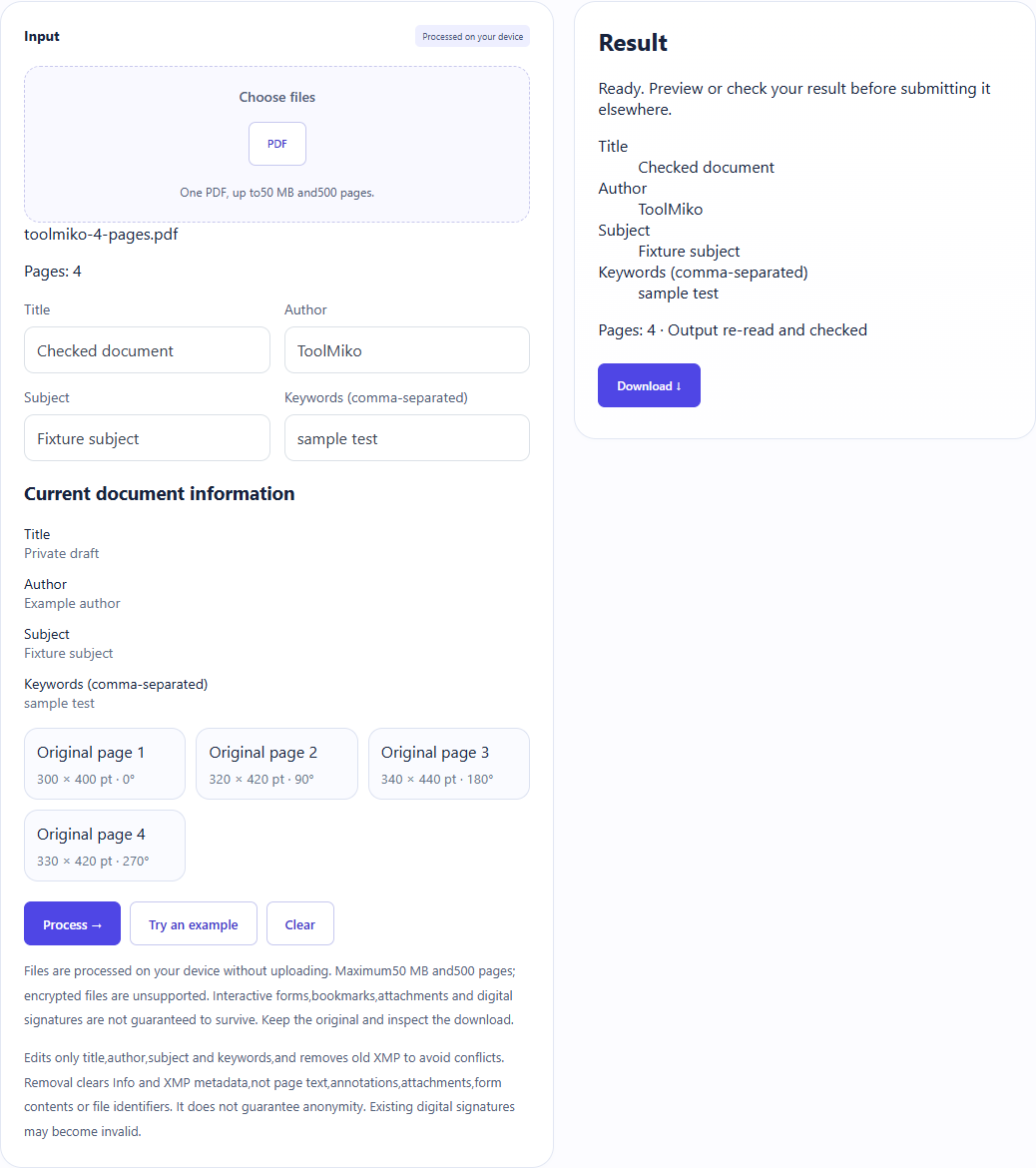
Set the fixture author to ToolMiko and title to Checked document;re-read the download to verify.
Edit PDF document information →Steps and checked example
- Choose an unencrypted PDF and wait for its page count.
- Review current information and edit title, author, subject and keywords (up to 500 characters each). Leaving a field blank clears it.
- Run and download a new PDF. Check the four document fields; XMP metadata is also removed, while visible page text is not edited.
Generated fixture and downloaded result
The sample contains no user files. Screenshots and downloadable results come from actual use of this tool.
Limits and checks
Files are processed on your device without uploading. Maximum50 MB and500 pages; encrypted files are unsupported. Interactive forms,bookmarks,attachments and digital signatures are not guaranteed to survive. Keep the original and inspect the download.
Edits only title,author,subject and keywords,and removes old XMP to avoid conflicts. Removal clears Info and XMP metadata,not page text,annotations,attachments,form contents or file identifiers. It does not guarantee anonymity. Existing digital signatures may become invalid.
Does changing the author replace a name in the document?
No. It changes the author property,not names or signatures on pages. Old XMP is removed to avoid conflicting properties. Remove document metadata instead →